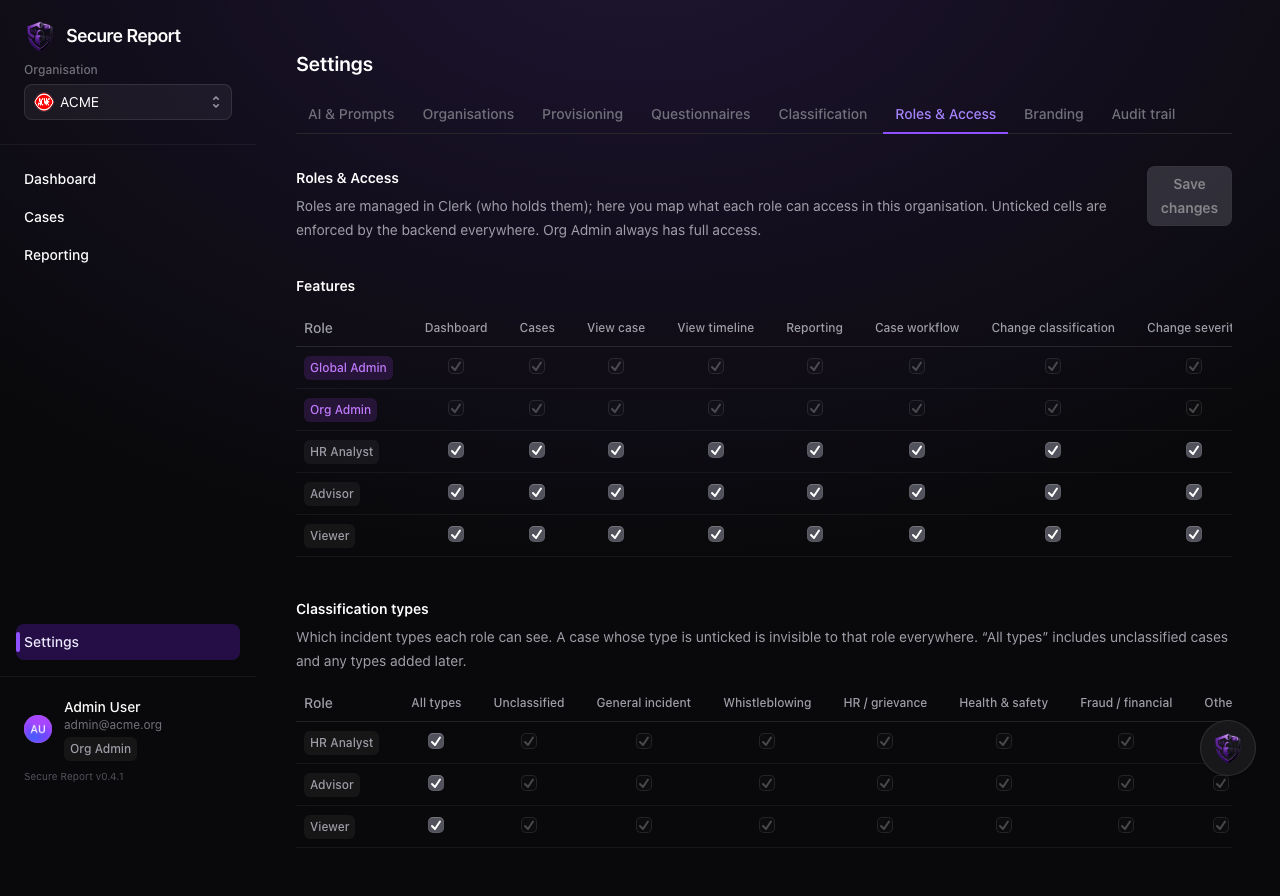
Settings → Roles & Access is a matrix: one row per role, one column per feature. Untick a feature to remove it from that role; restrict the Classifications column to hide whole case categories from a role.
How the model works
- Your member management is the authority on who holds which role. This screen decides what each role can access inside Secure Report.
- Defaults are permissive. A role you haven’t mapped has full access. Restriction is opt-in — save a mapping to start restricting.
- Enforcement is server-side. Hiding a menu is cosmetic; the backend independently enforces every feature and classification check on every request.
Features you can gate
Screens (Dashboard, Cases, Reporting), case actions (view case, view timeline, change workflow/status, change severity, re-classify, add notes, escalate), reporter messaging, AI analysis, and the assistant chat.
Classification restrictions
Restricting a role to certain classifications makes other cases invisible to it — they vanish from lists, dashboards, metrics and exports, and opening one directly reads as “not found”. The special Unclassified category controls whether the role can see brand-new, untriaged cases.
A typical pattern: give Advisors only the categories they advise on (e.g. Whistleblowing but not HR / grievance), keep HR Analysts broad, and leave Viewer unmapped for read-only oversight.
When new features are added to Secure Report, roles with a saved mapping don’t get them automatically — re-save the role’s row to grant the new feature. Unmapped roles pick up new features by default.