Signing in
Open app.securereport.cloud and sign in with your work email. Access is by invitation only — if you don’t have an account, ask your organisation’s administrator to invite you.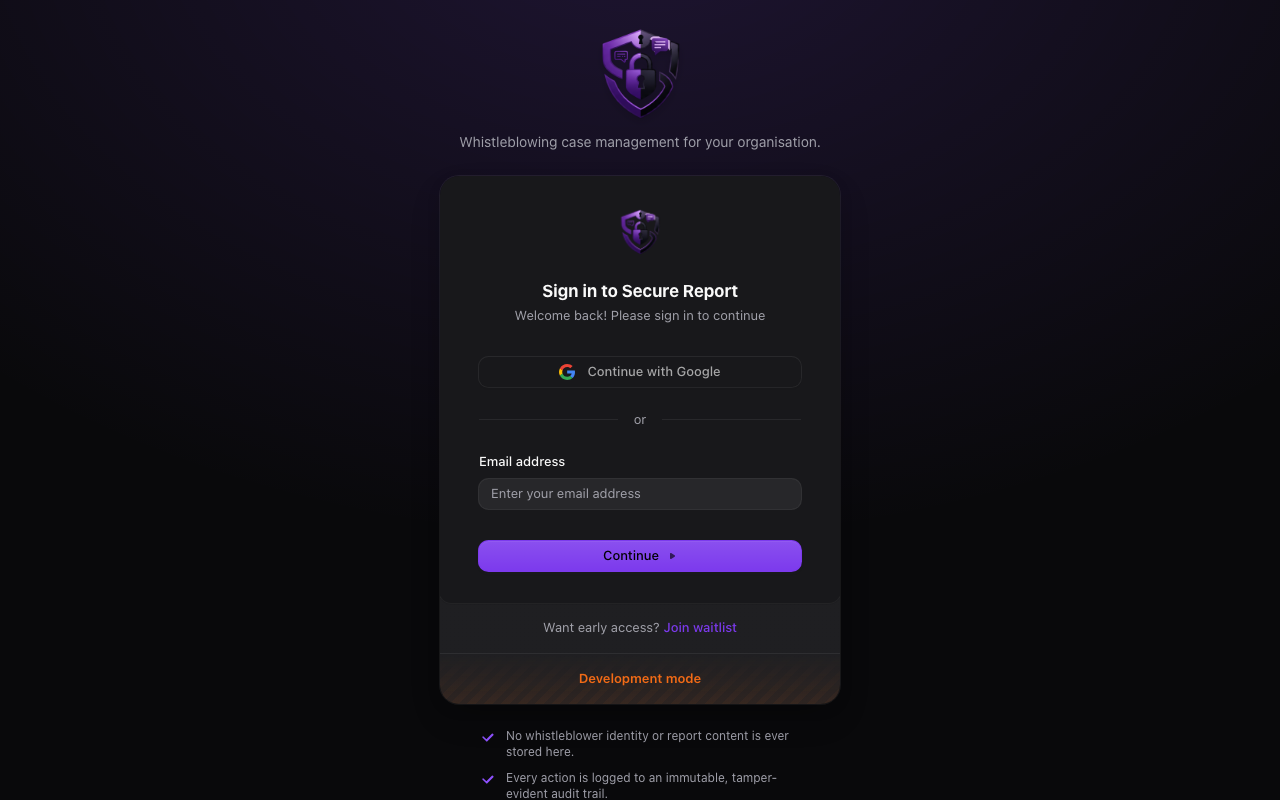
The application defaults to dark mode and follows your account’s appearance settings.
Your active organisation
Everything you see in Secure Report belongs to one organisation at a time — your active organisation, shown in the sidebar switcher. If you belong to several organisations, use the switcher to move between them; your role (and therefore your access) can differ in each.Roles at a glance
Your administrator assigns one of these roles per organisation:
What each role can actually see and do is mapped by your admin in Settings → Roles & Access — so your menu may show fewer screens than a colleague’s, and some case categories may be hidden from you entirely. That’s expected: cases outside your access simply don’t appear.